Trainer Recordings

DaDesktop provides several options for capturing desktop and course recordings. These include Trouble-Shooting recordings, Training Room recordings, and Trainer recordings.
A Trainer recording captures the Trainer's own DaDesktop machine. To begin a Trainer session recording, follow these steps:
- Select the three vertical dots to open a small dropdown menu. From that menu, pick 'Connect (with session recording)'
-

The system creates an audio/video recording of the Trainer machine, but you can't watch it until you close the virtual classroom. The recording is finalised at that point. Note: If you're a SuperAdmin user, there's an extra menu option to view live recordings while they're still being captured.
- To see and edit your recordings, click the 'cog' icon and go to the Recordings menu.

Recordings
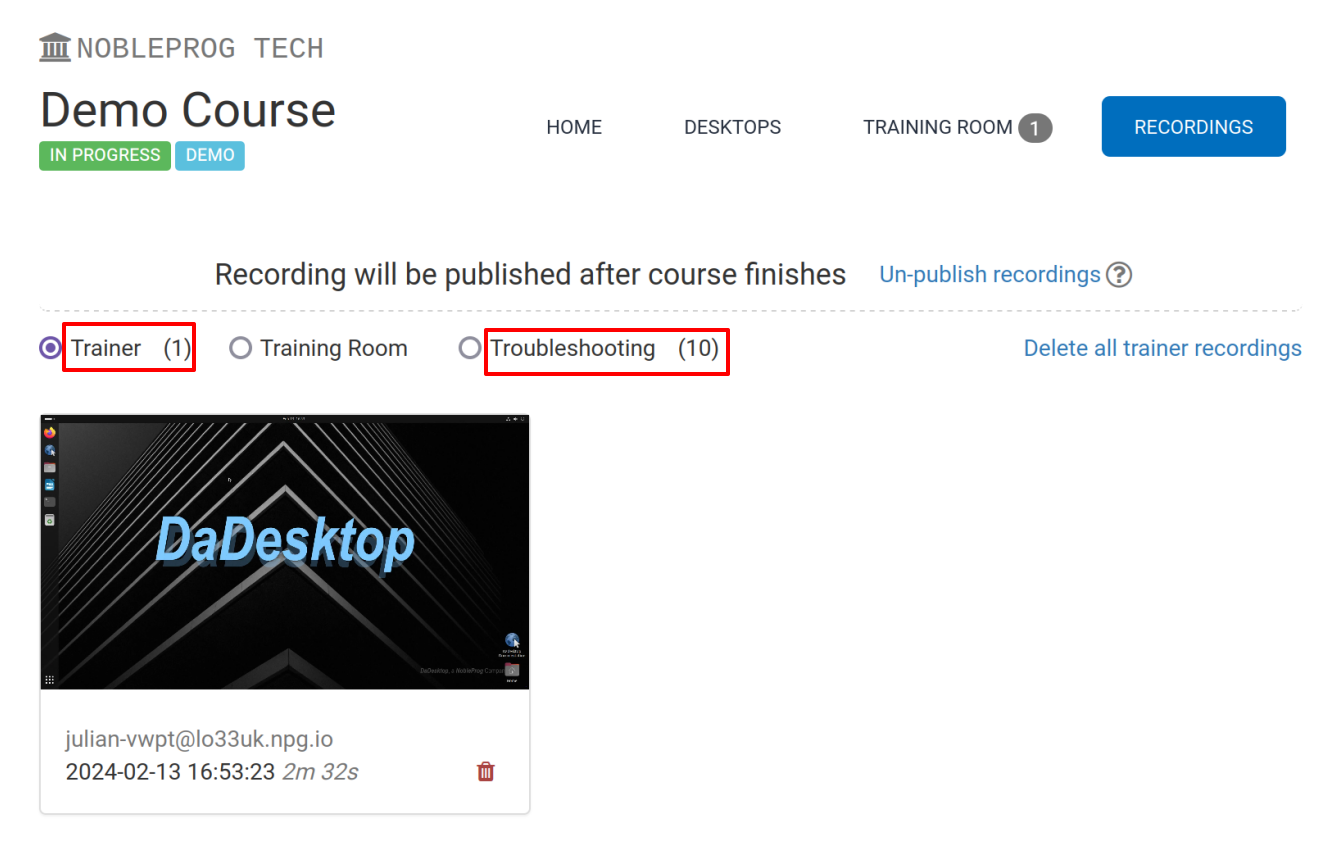
You can view Trainer recordings of your machine in two ways.
- Open the Recordings menu (as described earlier) to see them. You can play or delete recordings as needed. The icon with two spanners marks 'Troubleshooting Recordings' — these are generated automatically for troubleshooting purposes, not for presentation.

2. Alternatively, you can use the 'Recordings' tab within a course. There you'll find Trainer recordings, Training Room recordings, and Troubleshooting recordings.