How to expand disk space for a Fresh-start desktop within a course
If your current Fresh Start desktop is running low on storage, you can quickly increase its disk space
Begin by stopping the Fresh-Start machine
Next, choose Clone & Resize to create a Standalone version, as shown below (if needed, set up an organization first)
Here, specify the new disk size you need and submit the request
Go to the 'Standalones' link at the top of the page to locate it and confirm it's been created
Then, in the course, delete the original Fresh-Start machine using the 'Delete' button
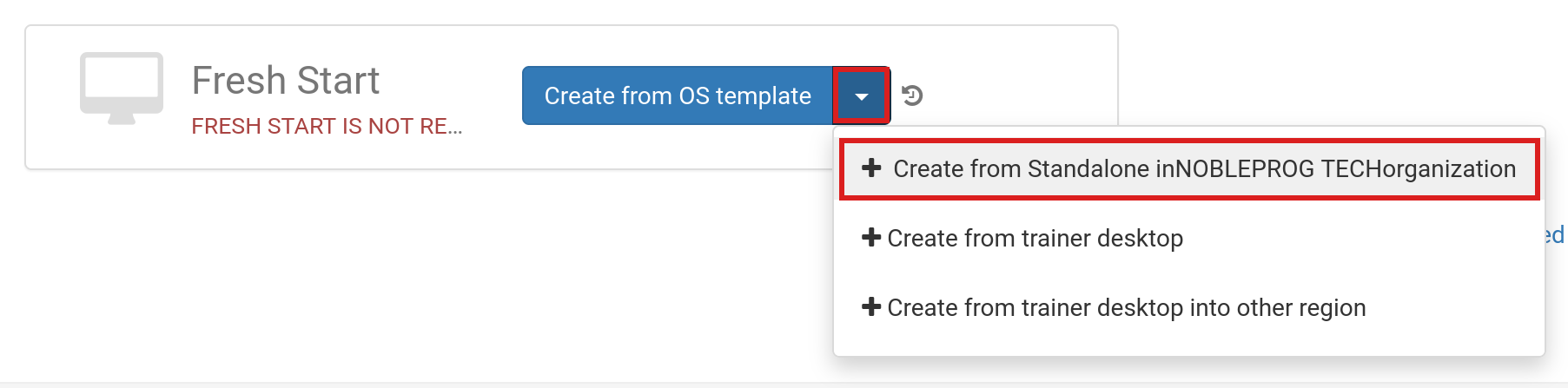
Click on the 'Create Fresh-Start from my Standalone' button
This dialog also lets you increase the disk size if you didn't do it earlier
If desired, enter an alias name, then click the 'Create Desktop' button
When using standard DaDesktop Linux or Windows OS templates, the disk extension happens automatically. However, AlmaLinux standard templates use a different default partition layout, so you'll need to follow the additional manual steps later in this guide.
Custom OS templates might also require manual partition extension—refer to the instructions below for those cases.
Extending partitions for custom OS templates and Almalinux standard templates
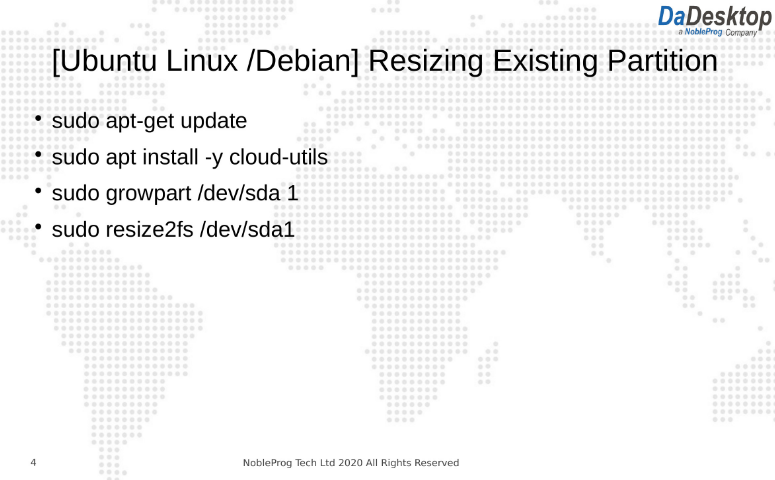
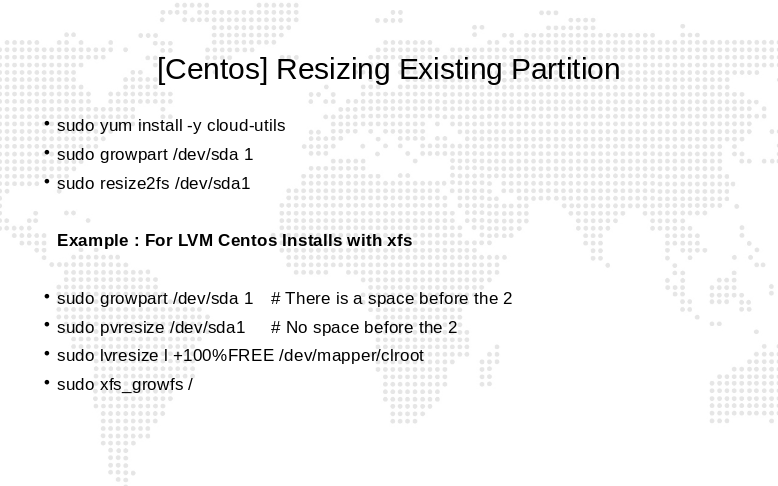
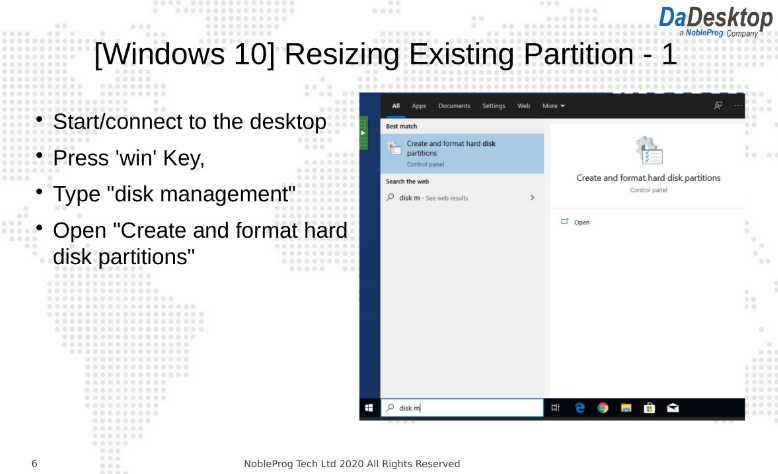
To resize your desktop partitions: open a terminal or command prompt, then run the appropriate commands listed below