
Building Your Own Standalone Desktops
To get started with Standalone Desktops:
- Click 'Standalones' in the top menu
- Click 'Create New Standalone' Desktop
- The dialogue box will open as below

Here’s a breakdown of what each field means:
-
GPU Model
Pick a GPU type if you need one. Ticking the 'Display GPU enabled servers' will only show servers with GPU's available -
Datacentre / Server
Pick the datacentre region and server nearest to you here in Hong Kong -
OS to clone from
A number of different Operating Systems are available.
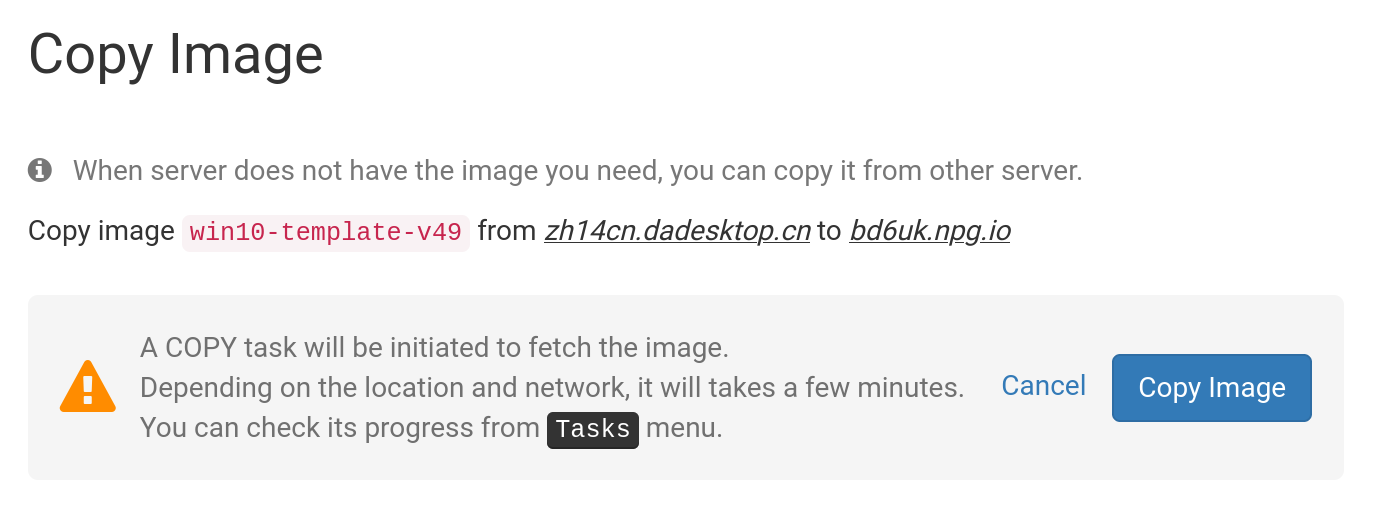
If a template is labelled 'Copy Required', then the template is available but will need to be copied to that Server before it can be used. Generally, only Windows OS may incur extra fees. -
Include Custom, RC, and Old Versions
DaDesktop updates OS templates regularly, albeit if you are experiencing any problems with the newest template, you may try using an older version
-
Memory
How much memory the desktops should be limited to. Please bear in mind that you are, by default, limited by the server resources. Each server can have different memory limits. If you need to increase these limits, please contact us on Support Chat. -
Label
Insert an Alias if required to choose a simpler label for your standalone.
OS Template to Clone from
When selecting and setting up the Operating System Template, you’ll find several options to choose from.
You can opt for Windows or one of many Linux distributions like Ubuntu, Debian, Almalinux etc.
Templates that come pre-built are usually marked with a version number such as VXX eg V51, and you can use them straight away.
But we now also let you build fully up-to-date Linux templates from scratch. The 'Build New' Linux templates rely on a completely different build approach, using the original Linux sources along with a script that applies the essential DaDesktop customisations. This ensures the template is always fully current, secure, and simpler to deploy and maintain.

Building the OS Template

After you’ve picked the required template, you’ll see this pop-up.
Click 'Start Building'
The standalone will now be built for you. Please be aware that the build process may take longer than 30s, and that if it appears that the process has stalled, you will need to wait a little longer.
Built Template Is Now Available

Once the template is built, you can adjust any options as you like, then hit 'Save and Create Desktop'.
Your Standalone is now being created – this usually only takes a few moments, far less time than the template build itself.
Your fresh Standalone is ready to go. In the example below, it’s named 'julian-6iqm', but you could have given it a more descriptive label if you’d preferred.

Click 'Connect' to launch and link up to the Standalone machine.