
Remote Replica
Remote Replica is designed to replicate, or clone, your Fresh Start Desktop to another server, often in a different location. Once set up, any changes to your machine are silently and automatically copied in the background to the replica, without needing any further user input.
The Remote Replica is an extremely handy feature that can be used in a number of different ways. Two of these are outlined below.
NB Remote Replica can currently only be used with Fresh Start machines, but it can also be used within DaDesktop for work, DD4W.
First: Make a Remote Replica (clone) of your Desktop on a server in a different data centre
As a bit of insurance, you may want to create a Remote Replica of your Desktop on a server in a different data centre, just in case the main server becomes unavailable for any reason. Should that happen, you can carry on working with the Remote Replica copy and pick up exactly where you left off.
Our Fresh Start machine is initially located on the UK Data Centre, e.g. bd3uk.

Choose the Data Centre you wish to use for the Remote Replica, generally one different from your existing machine. You may wish to use a different Data Centre, or even a different country.

The Remote Replica desktop is now being created. The time taken will vary depending on how far away the replica is located and the size of the Desktop. You can continue working on your original machine if required.
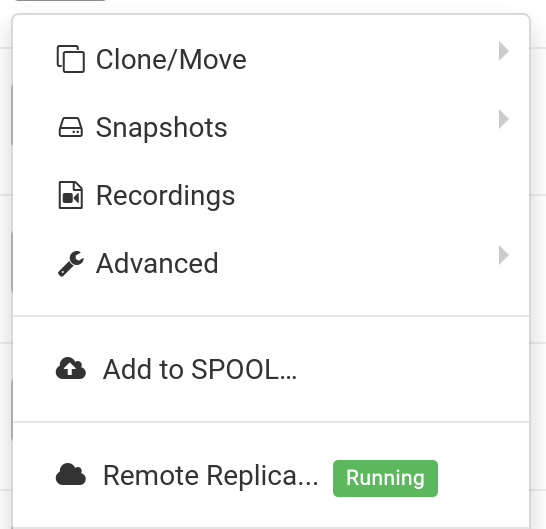

Restoring Remote Replica
If for any reason you cannot access your FreshStart Desktop, you can choose to Restore the Remote Replica that was set up.


Once the Remote Replica is used, you cannot go back to the original Desktop. That’s fine, as it will be an exact clone anyway.
Note, however, that once you’ve switched to your Remote Replica Desktop, the Remote Replica is no longer running. If you want to set up another replica, you’ll need to repeat the steps above to create a new Replica Desktop.


Second scenario: Using a Replica for FreshStart in a different geographical region to cut down on connection latency
Remote Replica is really useful when you need a replica of your Fresh Start machine that is geographically closer to you while you’re developing course content. For instance, a trainer based in Germany running a course in South Africa – this is a fairly common scenario in Hong Kong with DaDesktop, as the system makes it really easy to handle courses like this.
In such a case, you wouldn’t want to be creating the course Fresh Start Desktop on a South African server, as the connection latency would be too high. So, you create a Remote Replica of your Desktop in Europe to keep latency to a minimum. The replica will be synchronised with any changes you make.
After you’ve finished your work on the Fresh Start Desktop, restore the Remote Replica to the Trainer machine in South Africa so that it can be quickly copied to the Trainer machine and Participants.