Desktop Snapshots
Use of Desktop Snapshots
Snapshots let you easily back up and restore your virtual machine.
For instance, if you're performing an upgrade that might break your system, you can halt your virtual machine and capture a snapshot first.
If the upgrade goes smoothly, you can delete the snapshot. If it doesn't, you can roll back to the machine's earlier state.
Snapshots work across every DaDesktop type—Fresh Start, Trainer, Participant, and Standalone machines can all take snapshots.
Note: restoring a snapshot will power down the machine, so you'll need to restart it.
Creating Snapshots

Here's how to create a snapshot. Label it with a clear, descriptive name so you can easily identify when it was captured.

Below, we've taken two snapshots at different stages. You can restore or delete them as needed.

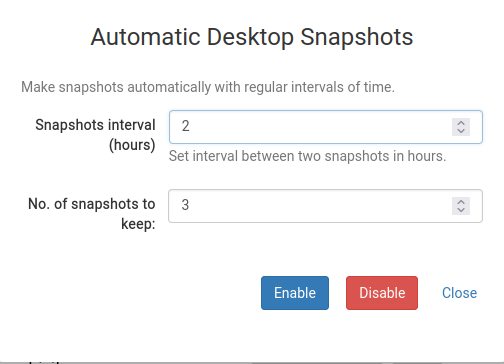
Automatic Desktop Snapshots
If you'd rather have snapshots taken automatically on a schedule so you don't forget, Automatic Desktop Snapshots is the perfect solution.
You can configure how many snapshots to keep and how often new ones are captured right here.